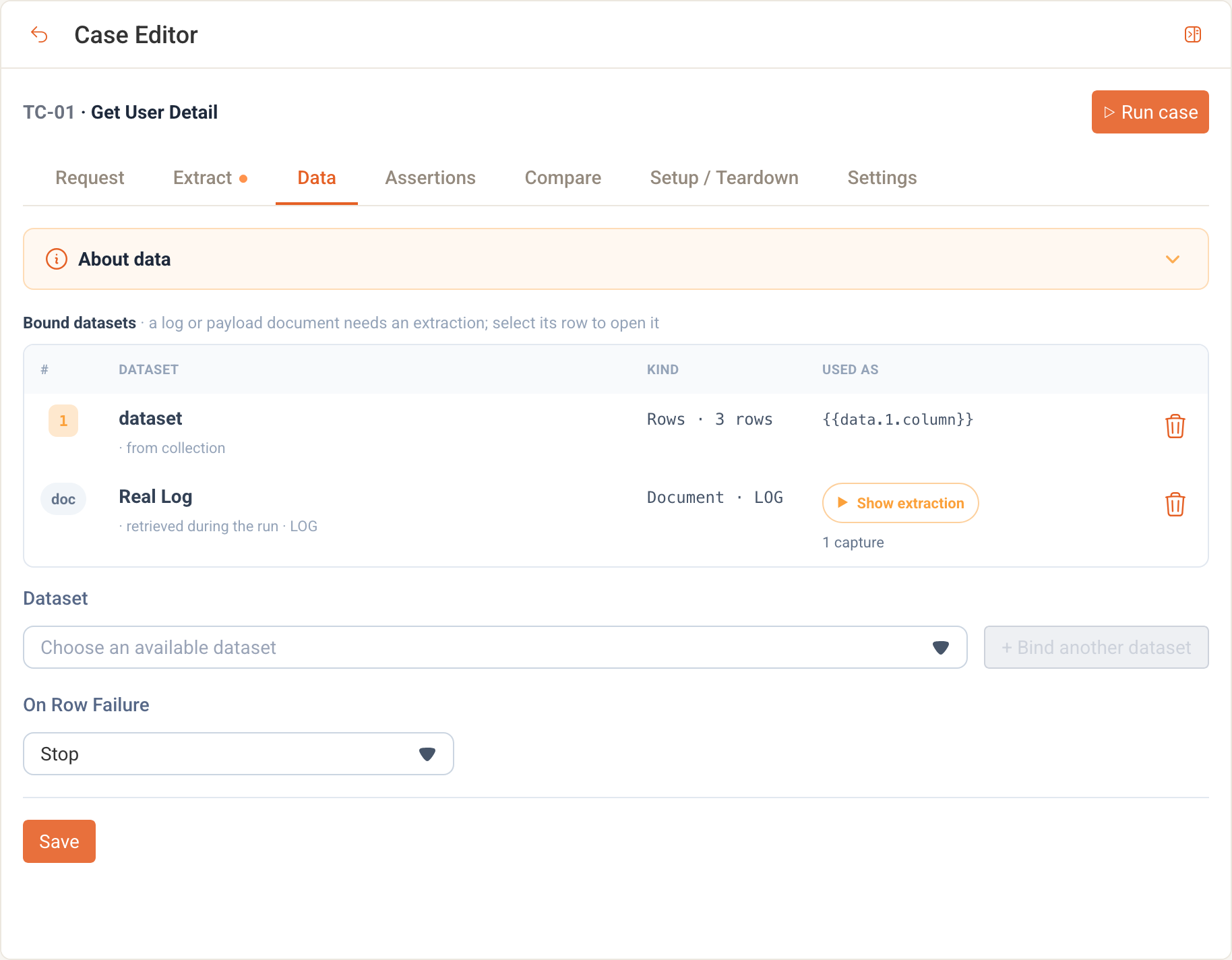
Data
Bound datasets table lists the datasets bound to the case. Datasets can be created in Datasets of the collection. A log or payload document requires an extraction, which is opened by clicking on its row.
The table contains the following columns:
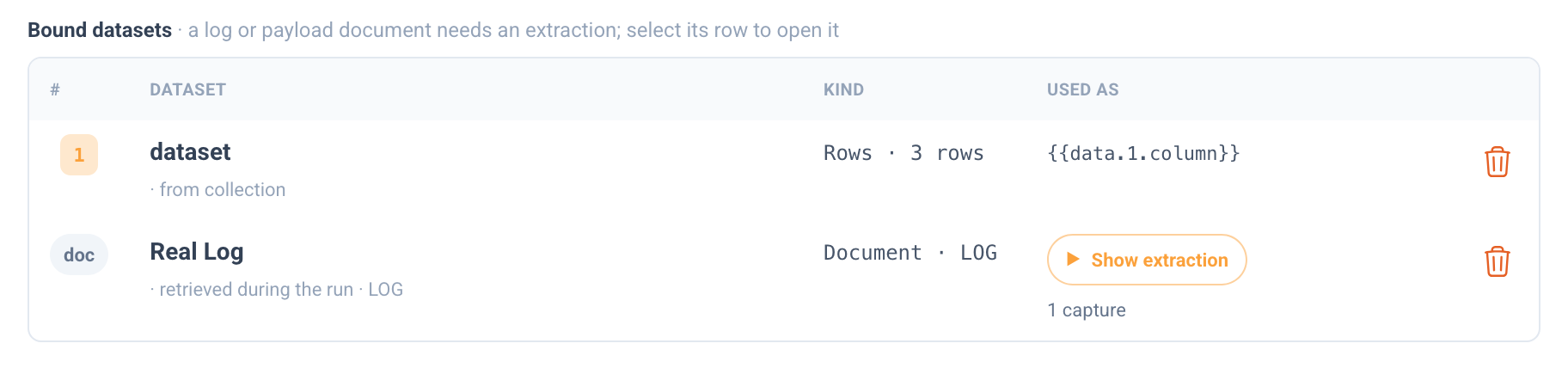
- #, the index of a rows dataset, or doc for a document.
- Dataset, the name of the dataset and its origin (e.g., from a collection or retrieved during the run).
- Kind, the type and its detail.
- Used As, the reference that reads the dataset or the number of captures for a document.
Bind Another Dataset
Another dataset can be bound by selecting an available dataset from the dropdown list and clicking on + Bind Another Dataset.

Changes take place only after clicking on Save.
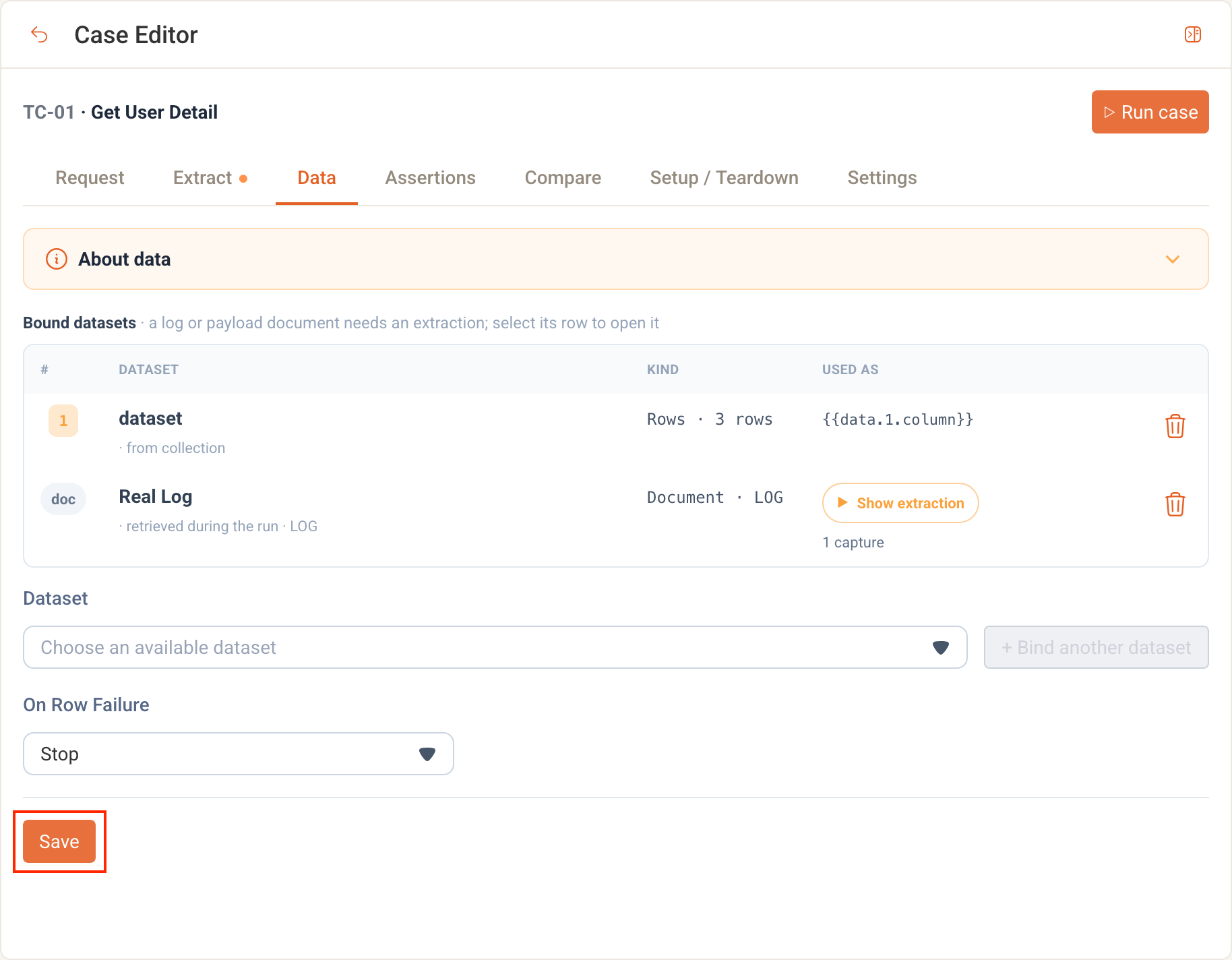
Remove Dataset
A bound dataset can be removed by clicking on the trashcan icon at the end of its row.
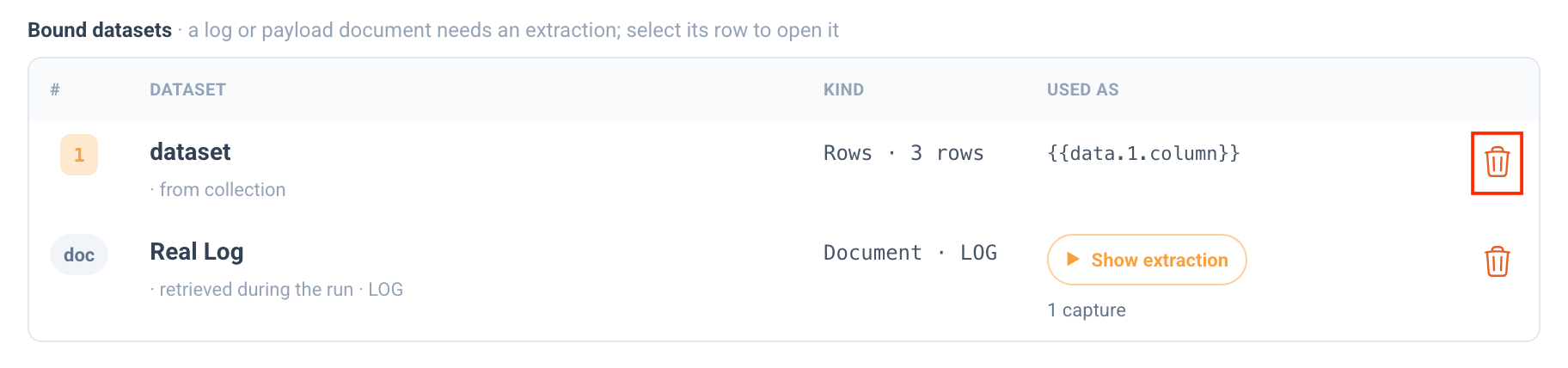
Changes take place only after clicking on Save.
Extraction
Show Extraction on a document opens the extraction panel.
Each capture finds one entry in the log and saves a value from it as {{doc.name}}.
The value is used in Assertions or Compare.
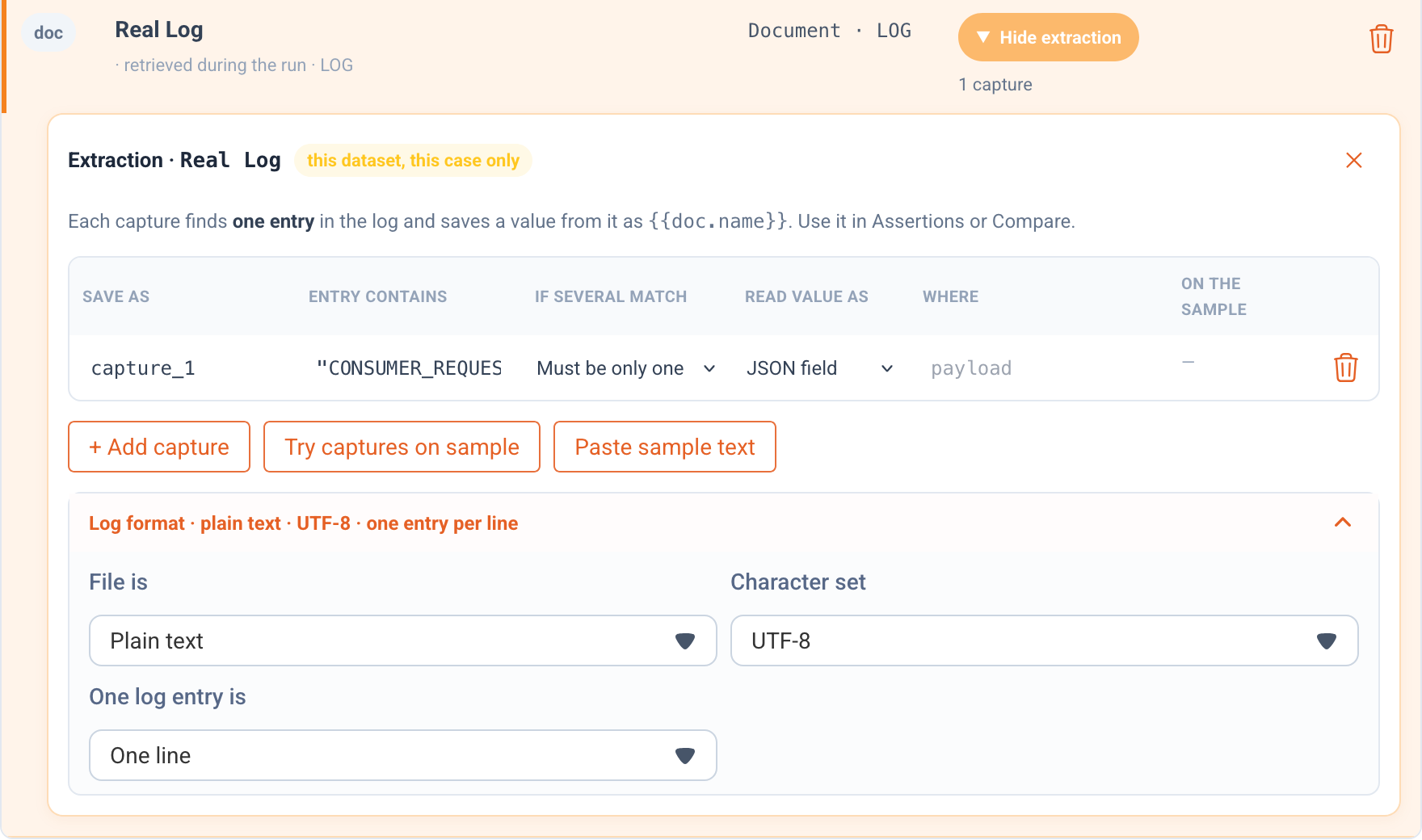
- Save As, the name of the capture.
- Entry Contains, the text that identifies the log entry.
- If Several Match, the behaviour when more than one entry matches. For example,
Must be only one. - Read Value As, how the value is parsed. For example,
JSON field. - Where, the field to read. For example,
payload. - On the sample, the result of the capture when tested against sample text. A dash (
-) indicates that it has not been tested.
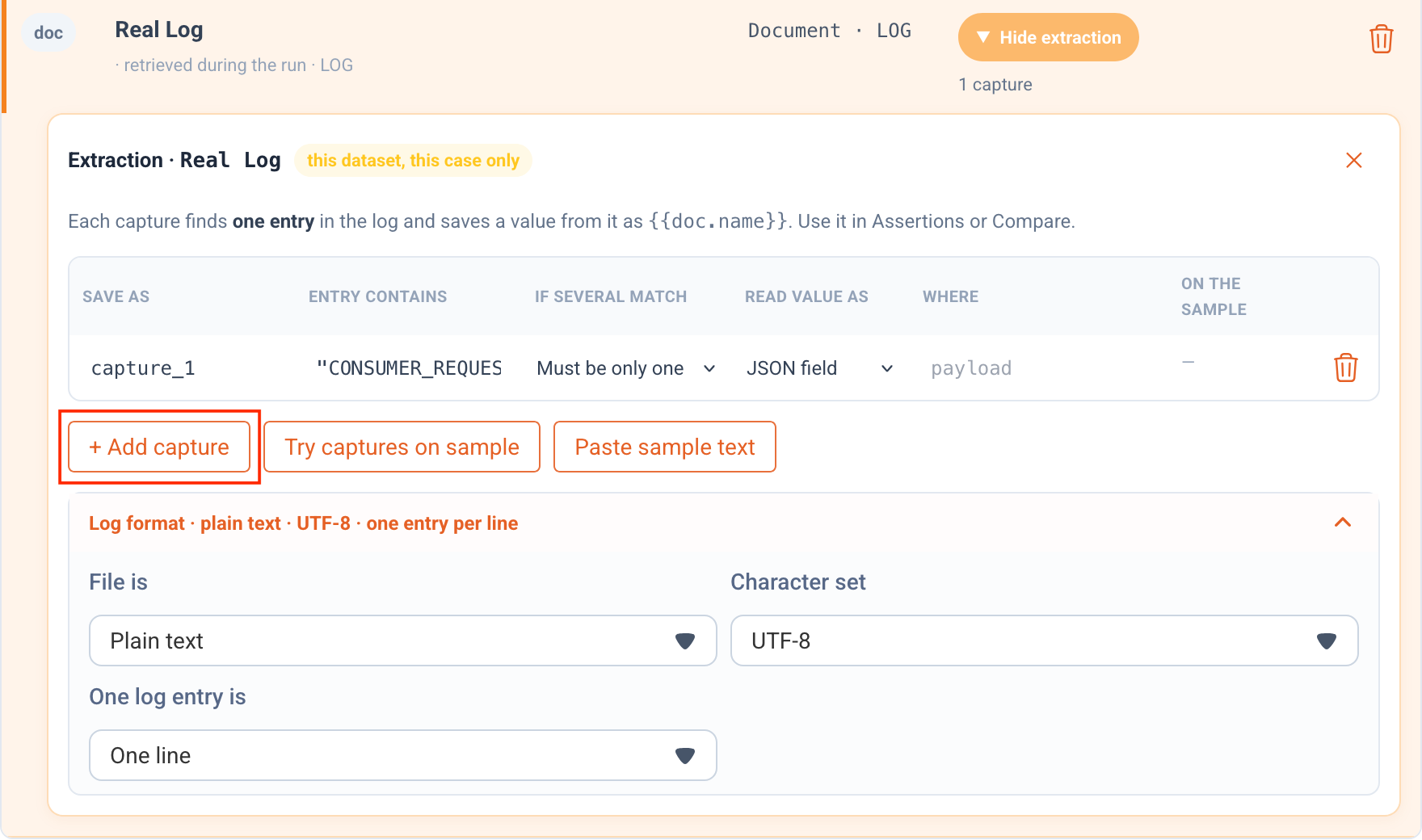
A capture can be added by clicking on + Add Capture.
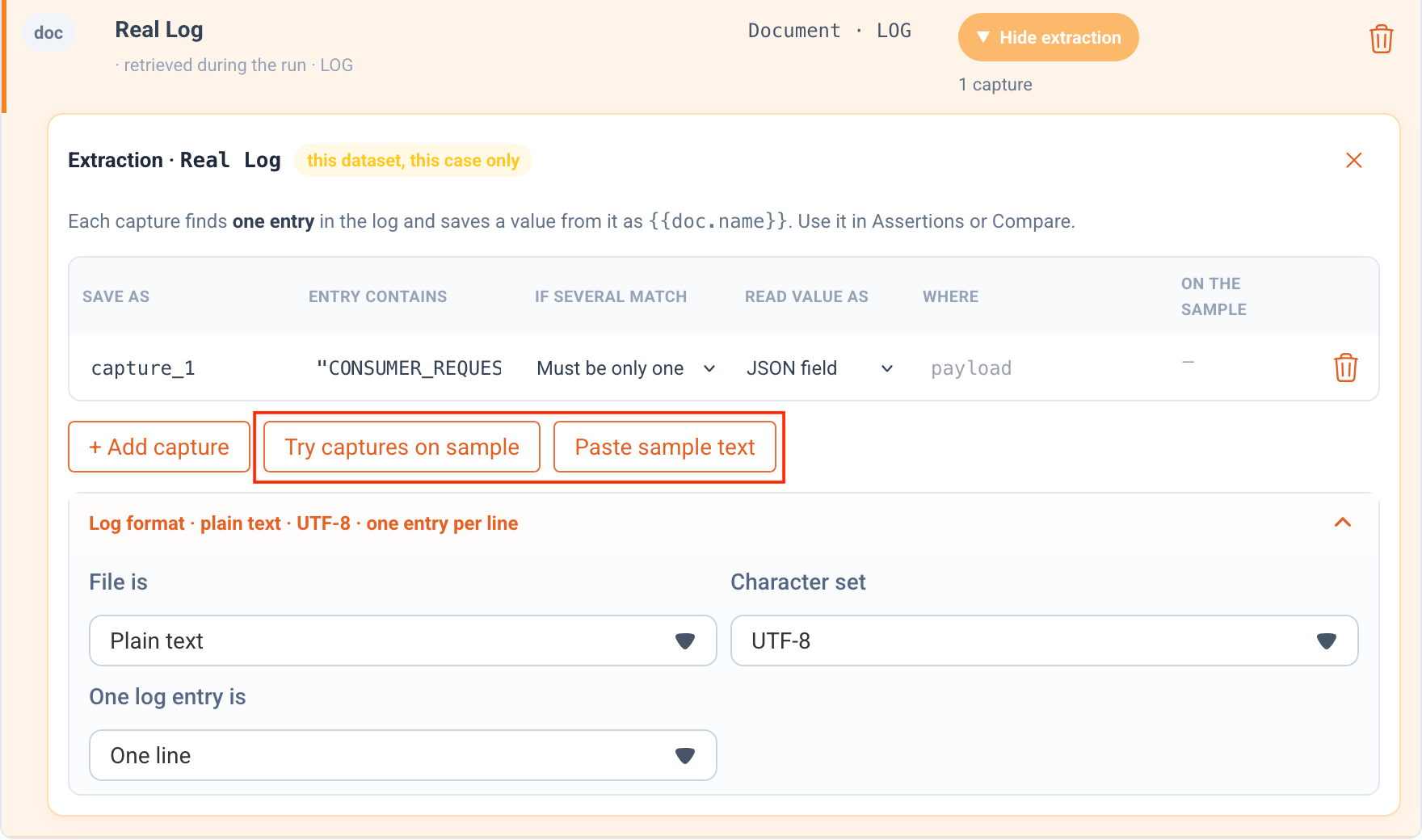
To evaluate a capture against sample text, users can click on Try Captures on Sample. Sample text can be supplied from Paste Sampled Text.
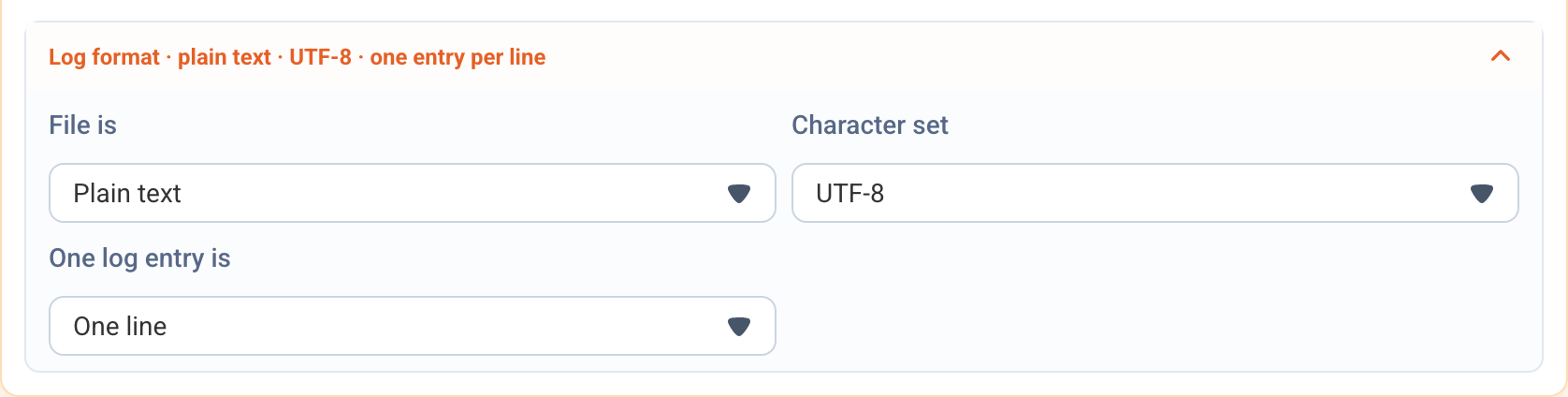
Log Format
Log Format describes how the log is read:
- File is, the file format. For example,
Plain text. - Character set, the encoding. For example,
UTF-8. - One log entry is, the extent of an entry. For example,
One line.